
Look inside an SQLite database from Finder
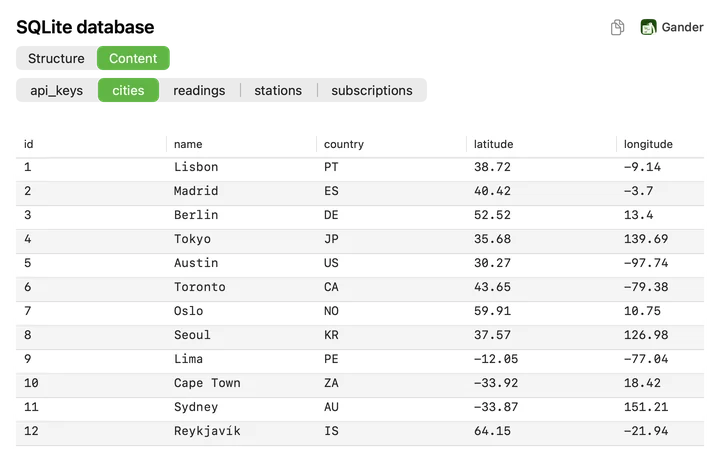
Select a .sqlite, .sqlite3 or .db file and press Space: Gander shows its tables, their structure and their rows, without a database app. The file is opened read-only, so the database is never touched.

How to do it
Install Gander from the Mac App Store and open it once.
Select the database in Finder and press Space.
Use Structure for columns, types, keys and indexes, and Content for the rows, table by table.
Structure and Content
Two tabs cover what you usually want to know about a database:
- Structure: every table’s columns with their types, primary keys, NOT NULL and indexes
- Content: the first 1,000 rows of each table, with NULL shown in grey
- One tab per table, for databases with many tables
- Copy a table’s rows as tab-separated values with a header, ready to paste into a spreadsheet
Safe for live databases
Gander opens the file read-only and immutable: it never writes to it and never creates -wal, -shm or journal files beside it. That makes it safe to look at the databases apps keep, such as Core Data stores. Rows that exist only in an uncommitted -wal file aren’t shown, and the preview says so.
Limits
Each table shows its first 1,000 rows, and very long cells are shortened. Finder keeps its own icon for SQLite files, because macOS doesn’t let other apps draw their thumbnails.
Questions
Can previewing a database damage it?
No. Gander opens it read-only and immutable, so it never writes to the file or creates files beside it.
Which files does Gander open as SQLite?
.sqlite, .sqlite3 and .db files that are SQLite databases.
Can I run queries or edit data?
No. Gander is a viewer: it shows the structure and the rows. To read .sql query files, see SQL formatting.
Try it on your own files
Gander is free on the Mac App Store, with no in-app purchases, no subscription and no account, and nothing you preview leaves your Mac.