
Open log files at the newest line, with errors in red
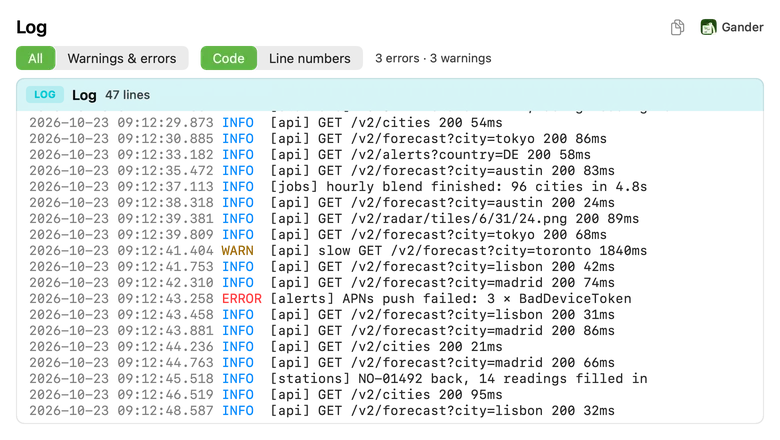
When you open a log, you want the end of it. Gander opens .log files scrolled to the newest line, colours each level and filters the file down to warnings and errors, stack traces included, with one press of Space in Finder.
How to do it
Install Gander from the Mac App Store and open it once.
Select a
.logfile in Finder and press Space.Read from the bottom, or switch from All to Warnings & errors.
Readable at a glance
Each line is coloured by what it is:
- Errors in red, warnings in yellow, info in blue and debug in grey
- Timestamps dimmed, in ISO, syslog, Apache and other common formats
- JSON log lines coloured as JSON, with the level taken from fields such as
levelorseverity - Stack traces, Python tracebacks and
Caused bylines kept with the entry above them
Warnings & errors
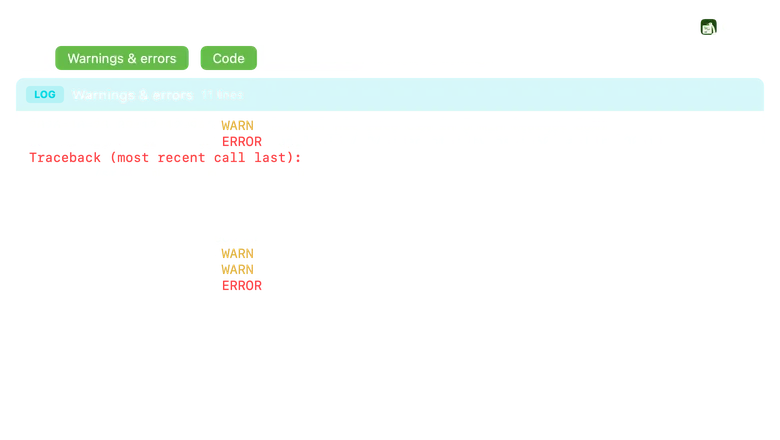
One switch filters the log to its warnings and errors, each with its stack trace, and keeps the file’s own line numbers so you can find them again. A summary counts them, for example “12 errors · 3 warnings”.
Large logs
For a large log, Gander reads the last 4 MB, the part you usually need, and says so. Finder thumbnails show the last lines, coloured, so a failing run stands out from its icon.
Questions
Why does the log open at the bottom?
The newest entries are at the end of a log, so Gander starts there. Scroll up for older lines.
Which log formats does Gander recognise?
Text logs with level words such as ERROR, WARN, INFO and DEBUG (in capitals, in brackets or after level=), the common timestamp formats, and JSON lines from loggers such as pino and bunyan.
Does it work with very large logs?
Yes. Gander reads the last 4 MB of the file, so even huge logs open quickly, and the preview says how much it shows.
Try it on your own files
Gander is free on the Mac App Store, with no in-app purchases, no subscription and no account, and nothing you preview leaves your Mac.